简介
一个使用 HTML5 Canvas 实现的轻量级粒子特效:当鼠标在画布上移动时,会生成带有随机颜色与方向的小球,随后小球逐渐缩小并消失,形成绚丽的拖尾效果。纯原生 JavaScript,无任何第三方依赖,适合作为入门 Canvas 动画/粒子系统的示例代码。
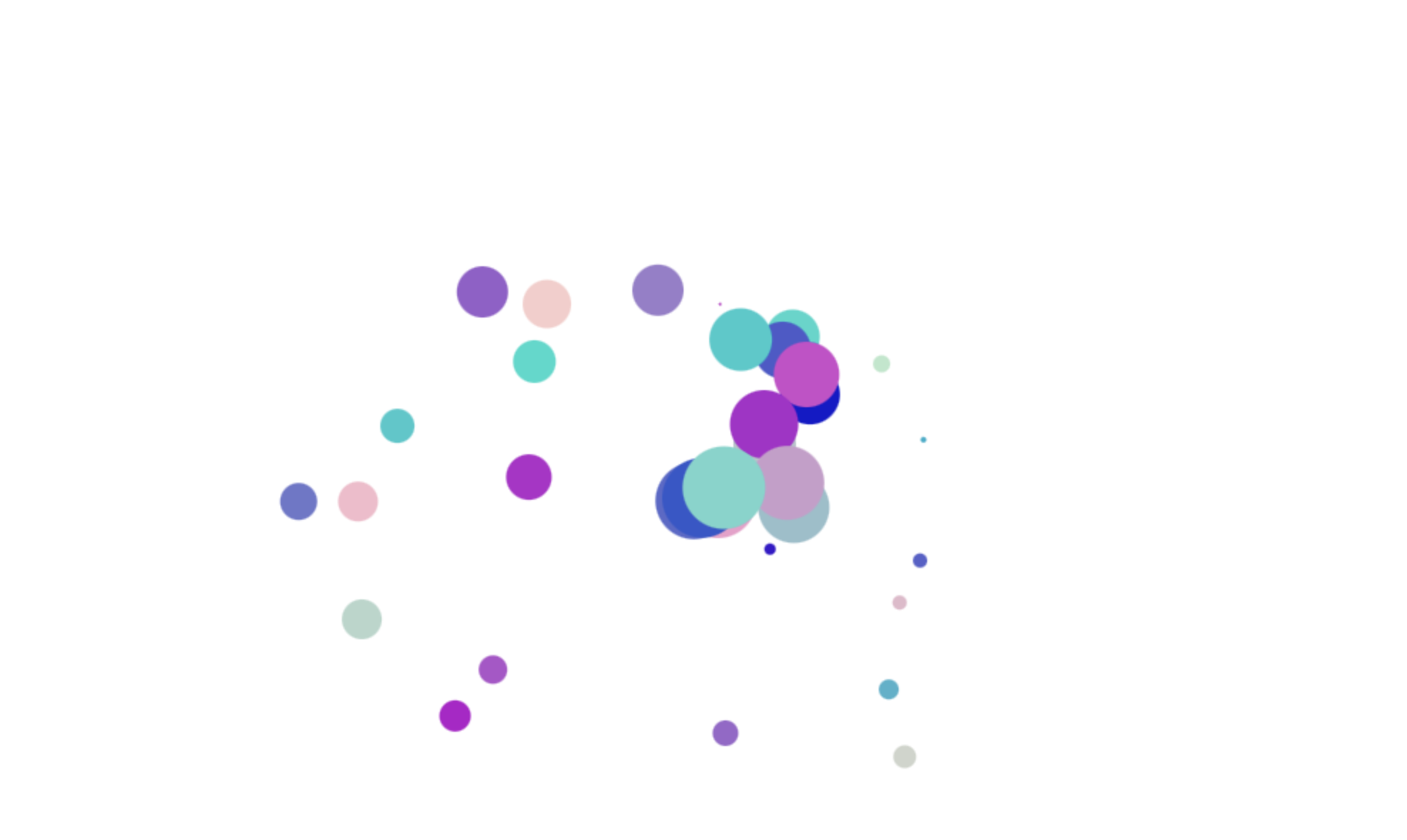
功能特性
- 随机色彩:每个小球创建时都会赋予随机 RGB 颜色。
- 轻量无依赖:仅一个
index.html文件,开箱即用。 - 动画更新:小球具有随机速度与衰减(半径逐帧减小)。
- 可拓展性强:易于调整大小、速度、刷新频率等参数。
目录结构
index.html # Demo 页面与核心脚本(内联)快速开始
你可以直接双击打开,或通过本地静态服务器访问(推荐)。
-
方式一:直接打开
- 双击
index.html,用浏览器打开即可预览。
- 双击
-
方式二:使用 Python 简易服务器(macOS 已内置 Python3)
# 在项目目录下运行 python3 -m http.server 8080 # 浏览器访问 open http://localhost:8080/index.html -
方式三:使用 Node http-server(需已安装 Node.js)
# 全局安装一次(如未安装)
npm install -g http-server
# 在项目目录下启动
yarn global add http-server  # 若你使用 yarn,也可用此命令
http-server -p 8080
open http://localhost:8080/index.html
运行说明
- 打开页面后,将鼠标在画布上移动即可产生彩色小球。
- 画布大小默认
1000x600,带有 1px 边框(便于观察)。
关键实现与可调整项
以下参数均可在 index.html 的 <script> 中调整:
- 画布尺寸:
- 通过
<canvas id="mycanvas" width="1000" height="600"></canvas>控制。
- 通过
- 初始半径:
- 在
onmousemove中创建小球:new Circle(event.clientX, event.clientY, 30, "orange"),将30改为需要的初始半径。
- 在
- 随机颜色:
- 构造函数内:
this.color = "rgb(" + randR + "," + randG + ",203)",可替换固定的203或改为完全随机。
- 构造函数内:
- 速度范围:
this.dx = Math.random() * 12 - 7;this.dy = Math.random() * 12 - 7;- 调整常量可改变速度区间与方向分布。
- 衰减速度:
this.r--;每帧半径减 1,可改为this.r -= 0.5等更平滑的衰减。
- 刷新间隔:
setInterval(..., 20)控制帧间隔,建议替换为requestAnimationFrame以获得更平滑的动画。
注意事项与小贴士
- 坐标系:当前使用
event.clientX / clientY,为相对视口坐标。如果画布不在页面左上角(0,0),可改为:const rect = mycanvas.getBoundingClientRect(); const x = event.clientX - rect.left; const y = event.clientY - rect.top; new Circle(x, y, 30, "orange"); - 性能建议:
- 高频移动会创建很多粒子,可考虑:
- 限制
circleArr最大长度; - 使用
requestAnimationFrame替代setInterval; - 降低初始半径或减小生成频率。
- 限制
- 高频移动会创建很多粒子,可考虑:
- 移动端支持:
- 可监听
touchmove事件以支持触摸:canvas.ontouchmove = (e) => { ... }。
- 可监听
兼容性
- 现代浏览器均支持 Canvas 2D API。建议使用最新版本的 Chrome / Edge / Safari 进行预览。
可能的改进方向
- 使用
requestAnimationFrame实现更平滑的渲染循环。 - 将脚本拆分为独立文件并模块化(ES Modules)。
- 引入粒子池(对象复用)优化 GC 压力。
- 支持透明背景、混合模式、更多形状/渐变/尾迹。
- 封装为可复用的类/组件,支持参数化初始化。
源码
<!DOCTYPE html>
<html>
<head>
    <meta charset="utf-8">
    <meta http-equiv="X-UA-Compatible" content="IE=edge">

<title>Canvas_鼠标移动炫彩小球</title>
    <style type="text/css">
        *{
            margin: 0;
            padding: 0;
        }
        img{
            border:0;
        }
        ol, ul ,li{list-style: none;}
        canvas{
            border: 1px solid #000;
        }
    </style>
</head>
<body>
    <canvas id="mycanvas" width="1000" height="600"></canvas>
    <script type="text/javascript">

        var mycanvas = document.getElementById("mycanvas");
        var ctx = mycanvas.getContext("2d");
        //圆形类
         function Circle(x,y,r,color){
            this.x = x;
            this.y = y;
            this.r = r;
            // 颜色的取值范围
            this.color = "rgb("+ (parseInt(Math.random() * 240 ) + 9) + ","+ (parseInt(Math.random() * 220 )+18) +",203)";

            //随机方向
            this.dx = Math.random() * 12 - 7;
            this.dy = Math.random() * 12 - 7;
            //往数组中push自己
            circleArr.push(this);
         }

         //渲染
         Circle.prototype.render = function(){
            //新建一条路径
            ctx.beginPath();
            //创建一个圆
            ctx.arc(this.x, this.y, this.r, 0, Math.PI*2, true);
            //设置样式颜色
            ctx.fillStyle = this.color;
            //通过填充路径的内容区域生成实心的图形
            ctx.fill();
         }

         //更新
         Circle.prototype.update = function(){
            this.x += this.dx;
            this.y += this.dy;
            this.r--;
            if(this.r < 0){
                for (var i = 0; i < circleArr.length; i++) {
                    if (circleArr[i] === this) {
                        circleArr.splice(i,1);
                    };
                }
                return false;
            }
            return true;
         }
         //创建一个数组
         var circleArr = [];

         //鼠标移动事件
         mycanvas.onmousemove = function(event){
            new Circle(event.clientX,event.clientY,30,"orange");
         }

         //设置定时器每20毫秒更新和渲染
         setInterval(function(){
            ctx.clearRect(0, 0, 1000, 600)
            for (var i = 0; i < circleArr.length; i++) {
                circleArr[i].update() && circleArr[i].render();
            };
         },20);

    </script>
</body>
</html>
正文完


